
How to Install a JumpIT VPN

Here is a simple step-by-step guide for non-experts on how to set up the JumpIT VPN with the WireGuard app on different devices. We send you a configuration file and a QR code that make setup very easy.
1. VPN setup on Windows:
- Step 1: Download the WireGuard app for Windows from the official website and install it.
- Step 2: Open the app and click “Import Tunnel(s) from file”.
- Step 3: Select the configuration file you received from us.
- Step 4: Once the file has been imported, turn on the VPN by clicking “Activate”.
2. VPN setup on Mac:
- Step 1: Go to the Mac App Store and download the WireGuard app.
- Step 2: Open the app and click the ”+” icon to add a new profile.
- Step 3: Choose “Import Tunnel(s) from file” and select the configuration file.
- Step 4: After the import, simply click “Activate” to start the VPN.
3. VPN setup on iPhone/iPad:
- Step 1: Open the App Store and download the WireGuard app.
- Step 2: Open the app and tap the ”+” icon in the top right.
- Step 3: Here you can scan the QR code you received from us, or import the configuration file.
- Step 4: After the import, tap “Activate” to establish the VPN connection.
4. VPN setup on Android:
- Step 1: Open the Google Play Store and download the WireGuard app.
- Step 2: Launch the app and tap the ”+” icon.
- Step 3: You can now scan the QR code or import the configuration file manually.
- Step 4: Once the file has been imported, turn on the VPN by tapping the switch.
5. VPN setup on a WireGuard-capable router:
Some routers support WireGuard directly, so you can set up the VPN right on your router. That means every device connected to that router automatically uses the VPN.
Router setup process:
- Step 1: Log in to your router’s configuration interface (usually by entering the router IP in your browser, e.g. 192.168.1.1).
- Step 2: Go to your router’s VPN settings and choose the WireGuard option.
- Step 3: Import the configuration file you received from us.
- Step 4: Turn on the VPN to use it across the whole network.
List of routers that support WireGuard:
-
FritzBox: Currently, some FritzBox models support WireGuard directly.
-
Ubiquiti Unifi Dream Machine (UDM): Supports WireGuard via custom configurations.
-
Ubiquiti Unifi Cloud Key: Here you can enable WireGuard through extensions.
-
Netgear Nighthawk XR500: Supports WireGuard after a firmware update.
-
MikroTik routers: Many models support WireGuard natively.
If your router doesn’t support WireGuard directly, you can use a VPN client on your computer or smartphone, or add a VPN-capable router to your network as an additional device.
That’s it! You should now be able to set up the JumpIT VPN on your device and browse the internet securely.
More articles
 Internet Security Password Manager: Why You Need One and Why We Recommend 1Password
Why a password manager is a must even for ordinary users, how it works, and how 1Password differs from the built-in options in macOS, Windows and Google Chrome.
 Internet Security Starlink on Mallorca: Finally Fast Internet, Even at the Finca
Starlink works surprisingly well on Mallorca: fast, stable and instantly available for fincas without fiber. What to know about CGNAT and VPN.
 Internet Security Geoblocking: why you cannot see some content online
From YouTube blocks to pricier hotel rates: geoblocking depends on your IP address. Read how it works and how you can get around it.
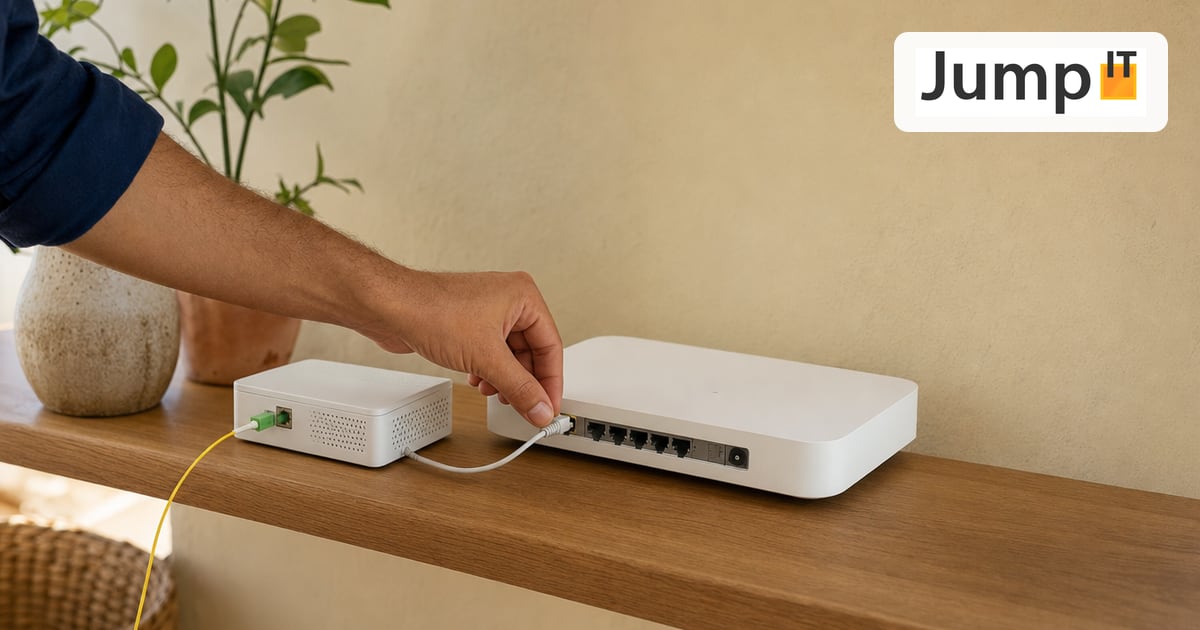 Internet Security Improving Movistar Fiber: Why Bridge Mode Often Fails
The white Movistar HGU box is unreliable to bypass with Monopuesto mode. We show how to replace it with an SFP stick or an ONT.
Note: images and parts of the text on this page were created with the help of artificial intelligence and editorially reviewed by JumpIT.
← To the knowledge center