
WireGuard MTU: 1420, 1380 or 1280? The Right Values
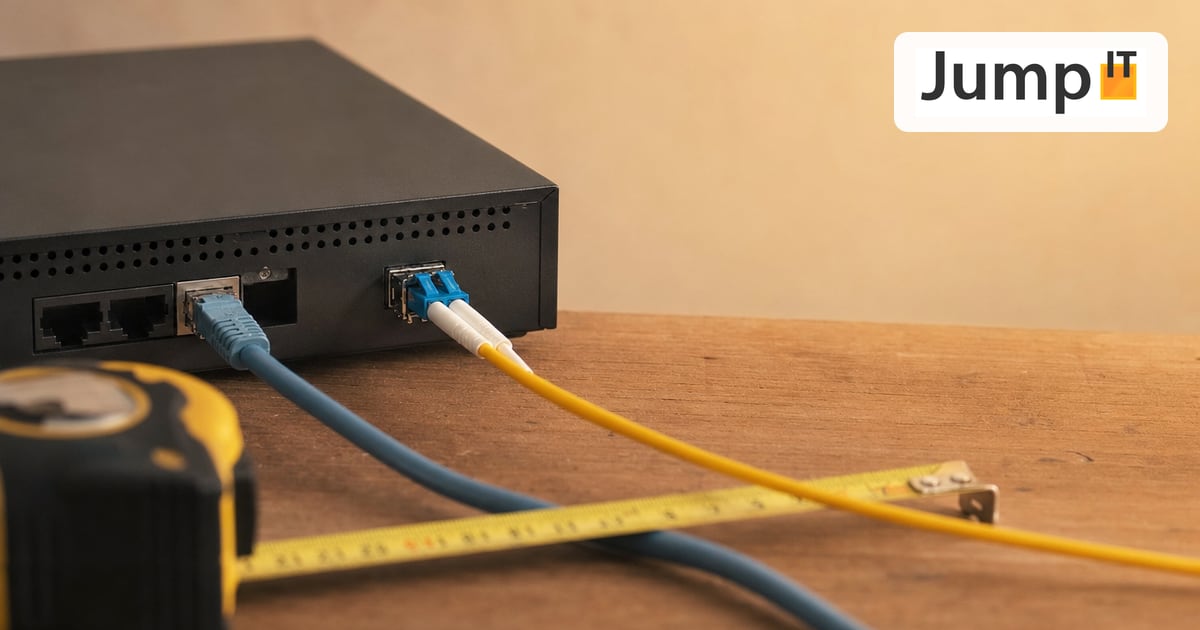
Everything about the MTU value and the Maximum Transmission Unit – with recommendations for mobile, Starlink, DSL and Spanish fiber providers (Movistar, Digi, Orange & co.)
UniFi Network 10.6.101
UniFi OS 5.1 or newer
As of: September 2026
The essentials at a glance
- Not sure? Set the WireGuard MTU to 1280. It works practically everywhere.
- Fiber without PPPoE (DHCP/IPoE): 1420.
- PPPoE with 1492 bytes (e.g. Movistar): 1412.
- PPPoE with 1500 bytes (new since Network 10.5, only if the provider supports RFC 4638): 1420.
- Mobile: 1280.
What’s new since UniFi Network 10.2?
The first version of this article was based on Network 10.2.105. Since then, three things relevant to the MTU have changed:
| Version | Change | What it means for WireGuard |
|---|---|---|
| Network 10.5 (June 2026) | PPPoE with full MTU 1500 per RFC 4638 | If your provider supports it, the WAN MTU rises from 1492 to 1500. The WireGuard MTU can then rise from 1412 to 1420. Details in section 5. |
| Network 10.6 (August 2026) | Test & Confirm (SafeOps) now also applies to VPN configurations | If the gateway loses its connection after a VPN change, UniFi automatically rolls the change back. That helps when you change the MTU remotely. |
| Security bulletin SAB 067 (26 August 2026) | Critical vulnerabilities in Network up to and including 10.4.57 | Before working on the VPN: install at least Network 10.5.67, preferably 10.6.101. Cloud Gateways and Dream Machines need UniFi OS 5.1.31 or newer. |
Note on UniFi OS 6.0.7: among other things, this version fixes a bug where WireGuard clients with IPv6 lost their connection after a change of the IPv6 prefix on the WAN. As of early September 2026, however, it is still Early Access and doesn’t belong on customer installations.
1. What is the MTU, anyway?
MTU stands for Maximum Transmission Unit. It determines the largest amount of data (in bytes) that may be sent in a single network packet.
Explained simply: imagine you’re shipping moving boxes with a delivery van. Every van has a maximum load size – that’s the MTU. If a box is too big, it has to be split up (fragmentation), or it doesn’t fit at all and gets sent back. The better the box size matches the van, the faster and more reliably everything arrives.
The default value for Ethernet networks is 1500 bytes. That means every data packet your router sends may be at most 1500 bytes in size. With VPN connections like WireGuard, however, an additional “envelope” (header/overhead) is added – and that’s exactly where it gets interesting.
2. MTU value vs. Maximum Transmission Unit – what’s the difference?
In UniFi Network you’ll come across two settings that sound similar at first glance:
The MTU value (in the WireGuard interface)
This is the MTU set directly on the WireGuard tunnel interface. It determines how large the data packets sent through the VPN tunnel itself may be. This value must be smaller than the MTU of the underlying internet connection, because WireGuard wraps its own header (the “VPN envelope”) around every packet.
Default MTU for WireGuard
WireGuard uses 1420 bytes by default. That’s 1500 minus 80 bytes of overhead, and therefore fits both tunnels over IPv4 and over IPv6. The UniFi WireGuard server also starts with 1420.
The Maximum Transmission Unit (on the WAN/network interface)
This setting refers to the MTU of the physical network interface – that is, the connection between your UniFi gateway and the internet (WAN). It determines how large packets may be on the actual internet line before they’re packed into the VPN tunnel.
Important: the two values are related!
The MTU value of the WireGuard tunnel must always be smaller than the Maximum Transmission Unit of the WAN interface. That’s because the WireGuard header needs room inside the overall packet.
The relationship at a glance
| Setting | Refers to | Default value | Meaning |
|---|---|---|---|
| MTU value | WireGuard tunnel (virtual interface) | 1420 | Maximum packet size inside the VPN tunnel |
| Maximum Transmission Unit | WAN interface (physical connection) | 1500 (Ethernet) / 1492 (PPPoE) / 1500 (PPPoE with RFC 4638, from Network 10.5) | Maximum packet size on the internet line including the VPN header |
3. Why is the MTU so important with WireGuard?
WireGuard packs your data into an encrypted “envelope”. This envelope has a fixed size:
| Component | Bytes |
|---|---|
| IPv4 header (outer) | 20 |
| UDP header | 8 |
| WireGuard header incl. authentication tag | 32 |
| Total overhead (IPv4) | 60 bytes |
| IPv6 header (outer, instead of IPv4) | 40 |
| Total overhead (IPv6) | 80 bytes |
If your internet line allows an MTU of 1500 bytes, then with IPv4 a maximum of 1500 − 60 = 1440 bytes remain for the actual data in the tunnel. With IPv6 it’s only 1500 − 80 = 1420 bytes.
IPv4 or IPv6 – which value applies? What matters is which protocol the tunnel itself runs over, i.e. how the client reaches the VPN endpoint. The traffic inside the tunnel doesn’t matter for this. If you don’t know for sure, or your clients connect sometimes over IPv4 and sometimes over IPv6, use the IPv6 value.
If you choose an MTU value that’s too large for the tunnel, packets get fragmented or lost. This leads to:
- Slow or dropping connections
- Websites that don’t load (especially HTTPS)
- Timeouts on downloads and uploads
- Unstable VPN connection with frequent drops
4. Where do I find the setting in UniFi Network 10.6?
You set the MTU separately for server and client. The labels may differ slightly depending on the interface language.
WireGuard server (employees or devices dial in to you):
- Open the UniFi Network app under
Settings - Go to
VPN→VPN Server - Select your WireGuard server
- Open the advanced settings (
Advanced) and enter the value in the MTU field - Click
Apply Changes
WireGuard client (your gateway connects to someone else’s WireGuard server):
Settings→VPN→VPN Client- Select the WireGuard client
- Enter MTU in the advanced settings
- Leave the MSS field empty – then UniFi adjusts the value automatically
Caution: the connection is briefly interrupted!
If you change the MTU value while a WireGuard connection is active, the connection is briefly dropped and automatically re-established.
Tip: safeguard remote changes
Since Network 10.6, Test & Confirm also applies to VPN changes. Check in the SafeOps settings whether the feature is active before you change the MTU on a remote installation. If the connection drops, UniFi automatically rolls the change back.
Server or client – where to change it? The WireGuard MTU affects the packets the respective interface sends. Lower it first on the side with the weaker line, usually the client on the road (phone, laptop in a hotel). A change on the server affects all connected devices at once.
5. New since Network 10.5: PPPoE with full MTU 1500
Until now, PPPoE had a fixed limit: 8 bytes go to the PPPoE header, leaving 1492 bytes. Since Network 10.5, UniFi gateways support RFC 4638 (“baby jumbo frames”). The gateway sends 1508-byte frames to the fiber modem (ONT), and the IP MTU stays at the full 1500 bytes.
Requirements:
- Your provider must support RFC 4638. Many don’t.
- The ONT or GPON SFP stick must let the larger frames through.
- Network 10.5 or newer on the gateway.
How to check whether it works (with the VPN switched off):
ping -D -s 1472 -c 5 8.8.8.8
This is the command for macOS. 1472 bytes of payload plus 28 bytes of header add up to exactly 1500. If the packets get through, your line runs with MTU 1500 and you can set the WireGuard MTU to 1420. If they don’t, it stays at 1492 and 1412.
Status of Spanish providers (September 2026)
- Movistar: according to the Movistar community, the network ignores the request, and the MTU stays at 1492.
- O2 (Movistar network): user reports are contradictory. Test it.
- Digi: users report that 1500 works. Test it.
- Orange / Jazztel, Vodafone (PPPoE): no reliable information. Test it.
Ubiquiti and the providers don’t publish an official list on this. So rely on the ping test, not on forum reports.
6. Recommended MTU values by connection type
The following table shows you the recommended WireGuard MTU values for different internet connection types. The right value depends on the MTU of your underlying connection and on whether the tunnel runs over IPv4 or IPv6.
| Connection type | WAN MTU | WireGuard MTU (IPv4) | WireGuard MTU (IPv6) | Notes |
|---|---|---|---|---|
| Fiber (DHCP/IPoE) | 1500 | 1440 | 1420 | Best possible value. No PPPoE overhead. |
| Fiber with PPPoE (Movistar, Orange, Jazztel) | 1492 | 1432 | 1412 | PPPoE takes away 8 bytes. Typical for Spanish providers! |
| Fiber with PPPoE and RFC 4638 | 1500 | 1440 | 1420 | From Network 10.5, only if the provider plays along (see section 5). |
| DSL / VDSL with PPPoE | 1492 | 1432 | 1412 | Same calculation as fiber + PPPoE. |
| Cable internet (DOCSIS) | 1500 | 1440 | 1420 | No PPPoE, full MTU available. |
| Starlink | 1500 | 1420 | 1400 | 20 bytes of buffer, because users report fluctuating path MTUs. |
| Mobile (4G/5G) | variable, often below 1500* | 1280–1380 | 1280–1360 | Strongly depends on provider and network quality. When in doubt: 1280. |
| Double NAT / CGNAT | variable | 1280–1380 | 1280 | NAT itself costs no bytes, but upstream tunnels (e.g. DS-Lite) do. |
| Satellite internet (not Starlink) | variable | 1280 | 1280 | Maximum compatibility. Higher latency is unavoidable. |
* Mobile providers set the MTU differently. The actual MTU can vary depending on location, network load and provider.
Rule of thumb for beginners
If you’re unsure, set the WireGuard MTU value to 1280. It’s the smallest value every IPv6-capable connection must be able to carry, and it therefore works practically everywhere – even if you lose a bit of throughput. You can step up gradually later and test whether the connection stays stable.
7. Specifics of Spanish providers
Anyone living in Mallorca or elsewhere in Spain often works with fiber connections (FTTH) that work technically differently from, say, those in Germany. Here are the most important details:
Movistar / O2 (Telefónica)
Movistar uses PPPoE over VLAN 6 for internet access. The PPPoE credentials are publicly known (adslppp@telefonicanetpa / adslppp). Because of the PPPoE overhead, the WAN MTU drops to 1492 bytes. According to community reports, the Movistar network rejects the full MTU 1500 per RFC 4638.
Recommended WireGuard MTU value: 1412
Orange / Jazztel
Orange also uses PPPoE, though over a different VLAN (usually VLAN 832 for internet). Here too, a WAN MTU of 1492 bytes applies.
Recommended WireGuard MTU value: 1412
Vodafone España (formerly ONO)
Vodafone uses DHCP (IPoE) instead of PPPoE in many areas, though partly also PPPoE. With DHCP, the WAN MTU is the full 1500 bytes; with PPPoE only 1492.
Recommended WireGuard MTU value: 1420–1440 (DHCP) or 1412 (PPPoE)
Digi (fiber)
Digi uses PPPoE with a WAN MTU of 1492. Users report that Digi supports RFC 4638. With Network 10.5 or newer, the ping test from section 5 is therefore worth doing.
Recommended WireGuard MTU value: 1412, with confirmed MTU 1500 1420
MásMóvil / Pepephone / Yoigo
These providers generally use DHCP (IPoE) and allow a WAN MTU of 1500 bytes.
Recommended WireGuard MTU value: 1420–1440
Tip for UniFi with Movistar GPON
If you replace your Movistar router with a UniFi Cloud Gateway (e.g. UCG Max, UDM Pro) with a GPON SFP stick, you have to configure VLAN 6 and PPPoE manually. The MTU is then automatically set to 1492. Make sure the WireGuard MTU value is adjusted accordingly.
| Provider | Protocol | VLAN | WAN MTU | MTU 1500 via RFC 4638? | WireGuard MTU (recommendation) |
|---|---|---|---|---|---|
| Movistar / O2 | PPPoE | 6 | 1492 | Movistar: no, O2: unclear | 1412 |
| Orange / Jazztel | PPPoE | 832 | 1492 | unknown | 1412 |
| Vodafone (DHCP) | IPoE/DHCP | 100 | 1500 | not needed | 1420–1440 |
| Vodafone (PPPoE) | PPPoE | 100 | 1492 | unknown | 1412 |
| Digi | PPPoE | 20 | 1492 | yes, per users | 1412, with RFC 4638: 1420 |
| MásMóvil / Yoigo | IPoE/DHCP | 20 | 1500 | not needed | 1420–1440 |
| Starlink (Mallorca) | DHCP | – | 1500 | not needed | 1400–1420 |
Note: VLAN IDs can vary depending on region and installation date. When in doubt, check the configuration in the existing router.
8. Typical problems with a wrong MTU value
A wrongly set MTU value causes symptoms that can look like a completely different problem at first glance:
| Symptom | Likely cause | Solution |
|---|---|---|
| VPN connects, but no websites load | MTU too high – large HTTPS packets are dropped | Reduce the MTU step by step by 20 |
| Ping works, but downloads drop out | Small ping packets fit, large data packets don’t | Set MTU to 1280, then work your way up |
| Only certain websites don’t load | Sites with large TLS handshakes get fragmented | MTU to 1380 or lower |
| Slow VPN speed | MTU too low – unnecessarily many small packets | Increase the MTU step by step |
| VPN keeps dropping on mobile | Changing mobile cells with different MTUs | MTU to 1280 (safest value) |
| VPN works at home, but not on the road | Home network has a higher MTU than mobile/hotel WiFi | Set client MTU to 1280 |
| After switching to PPPoE with 1500, the VPN stutters | The provider or ONT doesn’t let the larger frames through after all | Repeat the ping test with 1472, otherwise set WireGuard back to 1412 |
9. For power users: how to calculate the optimal MTU value
If you want to get the best possible throughput out of your WireGuard connection, it’s worth calculating the MTU value exactly instead of taking a conservative default.
The formula
WireGuard MTU = WAN MTU − WireGuard overhead
IPv4: WireGuard MTU = WAN MTU − 60
IPv6: WireGuard MTU = WAN MTU − 80
The WireGuard overhead in detail
| Component | IPv4 (bytes) | IPv6 (bytes) |
|---|---|---|
| Outer IP header | 20 | 40 |
| UDP header | 8 | 8 |
| WireGuard header (message type, reserved, receiver index) | 8 | 8 |
| WireGuard counter (nonce) | 8 | 8 |
| Poly1305 authentication tag | 16 | 16 |
| Total overhead | 60 | 80 |
Calculation examples
| Scenario | WAN MTU | Deduction | Result |
|---|---|---|---|
| Fiber without PPPoE, IPv4 | 1500 | − 60 | 1440 |
| Fiber without PPPoE, IPv6 | 1500 | − 80 | 1420 |
| Movistar FTTH (PPPoE), IPv4 | 1492 | − 60 | 1432 |
| Movistar FTTH (PPPoE), IPv6 (rec.) | 1492 | − 80 | 1412 ✅ |
| PPPoE with RFC 4638 (e.g. Digi), IPv6 | 1500 | − 80 | 1420 |
| Starlink (conservative), IPv6 | 1500 | − 80 − 20* | 1400 |
* With Starlink it’s advisable to deduct an additional 20 bytes of buffer, as users report fluctuating path MTUs.
Why 1412 is the “golden value” for Spain
Most Spanish FTTH providers use PPPoE with 1492 bytes. 1412 takes into account both the PPPoE overhead (8 bytes) and the larger WireGuard overhead with IPv6 (80 bytes), and therefore works regardless of whether the tunnel runs over IPv4 or IPv6. Only if your provider demonstrably supports RFC 4638 may you go up to 1420.
MSS clamping – an important detail
Besides the MTU there’s also the MSS value (Maximum Segment Size). It only affects TCP connections and is usually adjusted automatically. The formula is:
MSS = MTU − 40 (IPv4) or MTU − 60 (IPv6)
With a WireGuard MTU of 1412, that gives an MSS of 1372 (IPv4) or 1352 (IPv6). UniFi gateways apply MSS clamping automatically as long as you leave the MSS field in the WireGuard client empty. If you enter a fixed value there, you have to keep it in step yourself with every MTU change.
10. Testing and verifying the MTU
To determine your line’s MTU empirically, run a ping test without fragmentation on your computer. Switch the VPN off while doing this, because you’re measuring the line to the VPN endpoint.
On macOS (Terminal)
ping -D -s 1472 -c 5 8.8.8.8
On Linux (Terminal)
ping -M do -s 1472 -c 5 8.8.8.8
On Windows (CMD)
ping -f -l 1472 8.8.8.8
-D (macOS), -M do (Linux) and -f (Windows) prevent fragmentation. Start with 1472 and reduce the value until the packets get through. On Windows you’ll otherwise see “Packet needs to be fragmented but DF set”. The calculation:
- Largest working value + 28 (IP and ICMP header) = path MTU of your line
- Path MTU − 80 = safe WireGuard MTU
Example: 1464 gets through, 1465 doesn’t. 1464 + 28 = 1492 (typical PPPoE), 1492 − 80 = 1412.
Via the UniFi console (SSH)
You enable SSH under Settings → Control Plane → Console. After that you can connect to your UniFi gateway and check the configured values:
ip link show | grep -i -A1 wg
This shows the WireGuard interfaces along with their MTU. Whether your PPPoE connection runs with 1492 or 1500 you can see with:
ip link show ppp0
How to optimize
-
Start with the conservative value 1280 and test the connection.
-
Increase step by step by 20 (1300, 1320, 1340 …).
-
Test after every change: VPN setup, website loading, speed test.
-
The highest stable value is your optimal MTU value.
11. Summary & conclusion
In UniFi Network 10.6, you set the WireGuard MTU for server and client directly in the interface. The biggest news for connections in Spain came with Network 10.5: PPPoE with full MTU 1500. You only benefit from it, though, if your provider supports RFC 4638 – which is currently not the case with Movistar. Network 10.6 also brings a safety net for remote work with Test & Confirm for VPN changes.
The key points:
| Question | Answer |
|---|---|
| What’s the difference between “MTU value” and “Maximum Transmission Unit”? | MTU value = packet size in the VPN tunnel. Maximum Transmission Unit = packet size on the physical line. The tunnel MTU must be smaller. |
| Which value should I use if I’m unsure? | 1280 – works everywhere, even if not optimal. |
| Best value for Movistar/Orange in Mallorca? | 1412 – accounts for PPPoE + IPv6 overhead. |
| I have PPPoE with MTU 1500 (RFC 4638). Which value? | 1420 – but only after passing the ping test with 1472. |
| Best value for Starlink? | 1400–1420 – with some buffer. |
| Best value for mobile? | 1280 – maximum compatibility with changing networks. |
| Which version should I have at minimum? | Network 10.5.67 because of security bulletin SAB 067, preferably 10.6.101. |
Common mistake
Never set the WireGuard MTU value to 1500 or higher. It almost always leads to problems, since there’s no room left for the WireGuard overhead. Even with a WAN MTU of 1500 – including PPPoE per RFC 4638 – the tunnel MTU may be at most 1440 (IPv4) or 1420 (IPv6).
More articles
 UniFi / Ubiquiti What Is UniFi? Apps, Devices and Costs Explained
What is UniFi? Network, Protect, Access, Talk and Drive in one interface: what each app does, which hardware you need and what costs apply.
 UniFi / Ubiquiti UniFi Cloud Gateway: Remote Management and What Happens to Your Data
UniFi Cloud Gateway lets your network be managed remotely. Here is how it works, and your data stays local with you, not in the cloud.
 UniFi / Ubiquiti Cloud Key, Dream Machine or Self-Hosted: Where Does the UniFi Controller Run?
Do you need a Cloud Key if you already have a Dream Machine? Where the UniFi controller runs and which option suits you in 2026.
 UniFi / Ubiquiti UniFi or TP-Link Omada: An Honest Comparison
Omada is cheaper, UniFi offers more than networking: an honest look at where the two differ and which system suits whom.
Note: images and parts of the text on this page were created with the help of artificial intelligence and editorially reviewed by JumpIT.
← To the knowledge center